To initiate an order, start by clicking “Custom Order" at the top of your page.
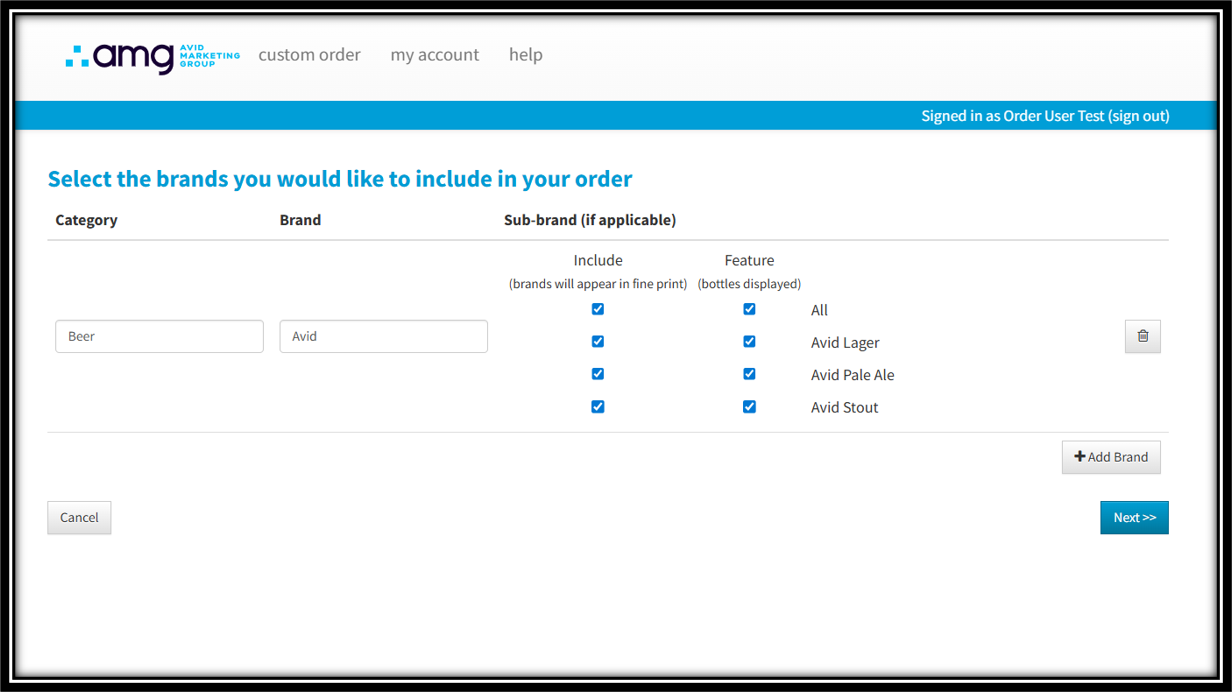
Add all relevant brands where prompted and select all necessary sub-brands; click the "Add Brand" button if multiple brands are required. When you're done, click "Next." Here, you'll select the type of order you want to place.
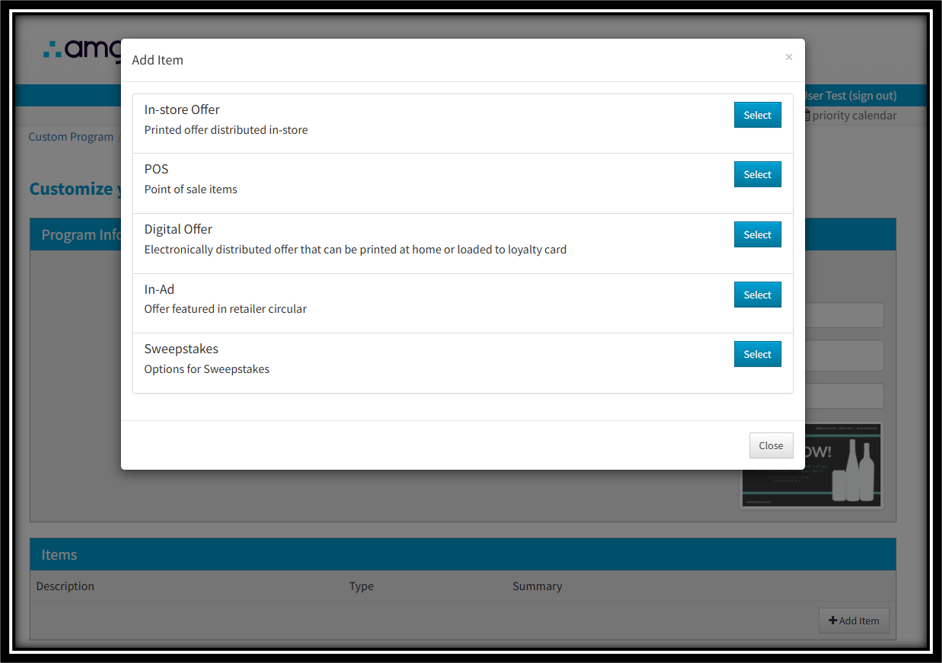
Multiple types of offers can be purchased in a single order; configure one type of order at a time, and you'll have the option to "Add Item" after details for each item are completed.
To place a digital order
Click "Select" next to Digital Offer; then, complete the item details to add it to the order. Be sure to enter all required fields. When inputting circulation amount, use "9999" for unlimited circulations, or "1" if you're unsure. For promo center rebates, enter the maximum redemption desired.
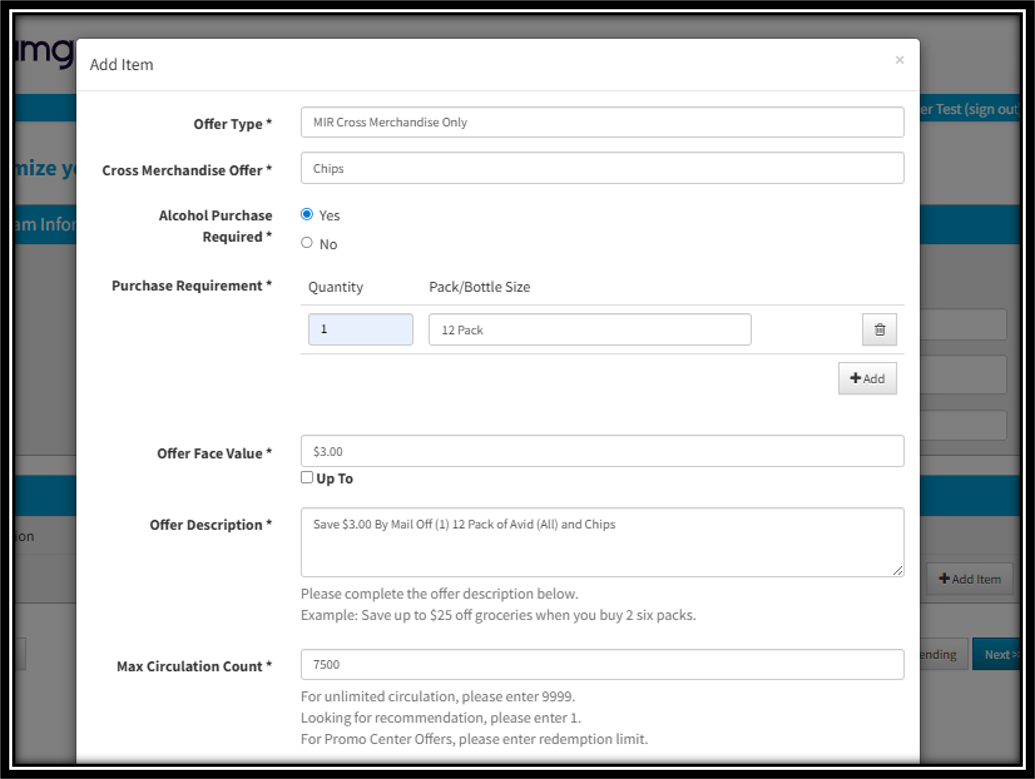
Select the states where the offer is valid. Greyed out states can not be selected and means the offer type is not legal for those states.
Click Save, and then where prompted, select the host of your digital offer. This might be AMG Promo Center or Shop.Snap.Earn, Neptune, Inmar, etc.
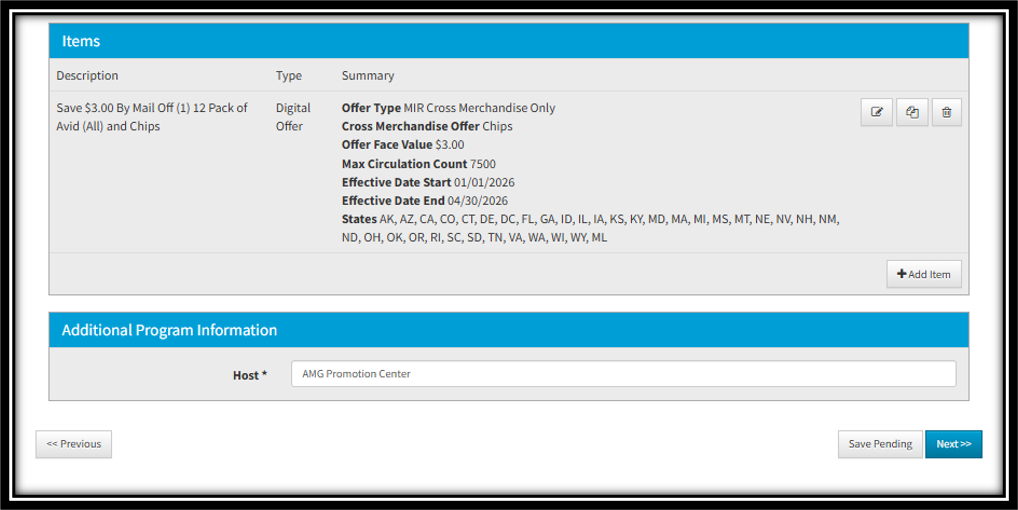
Click "Next" to review your order details.
If at any time you need to pause while placing the order, the "Save Pending" button allows you to save your order at any step of the ordering process prior to submitting.
To place an in-store order
Click "Select" next to the in-store offer type.
Complete the required fields in the Program Information Section, and Click "Add Item."
Here, you'll be prompted to add your program name, select valid retailers for the offer, and select a Theme for shared standardized visuals, if applicable to your team.
If a retailer is not available to select from the dropdown, you can add it in the "Retailer (Other)" field.
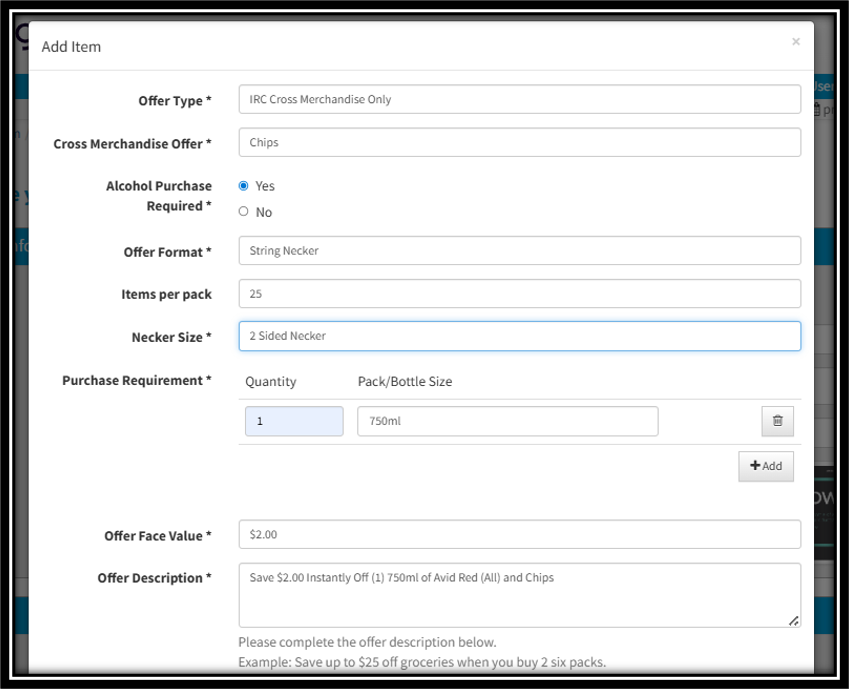
Complete the Add Item section of the offer; select the offer type from the dropdown, indicate whether the offer is cross-merch and whether alcohol purchase is required.
Select the format of the offer (necker, tear pad, etc.) If you don;t see your offer type availabe in the dropdown, type it in the "Other" field to the right. Indicate per-pack qty, orientation, and size as applicable, and the purchase quantity.
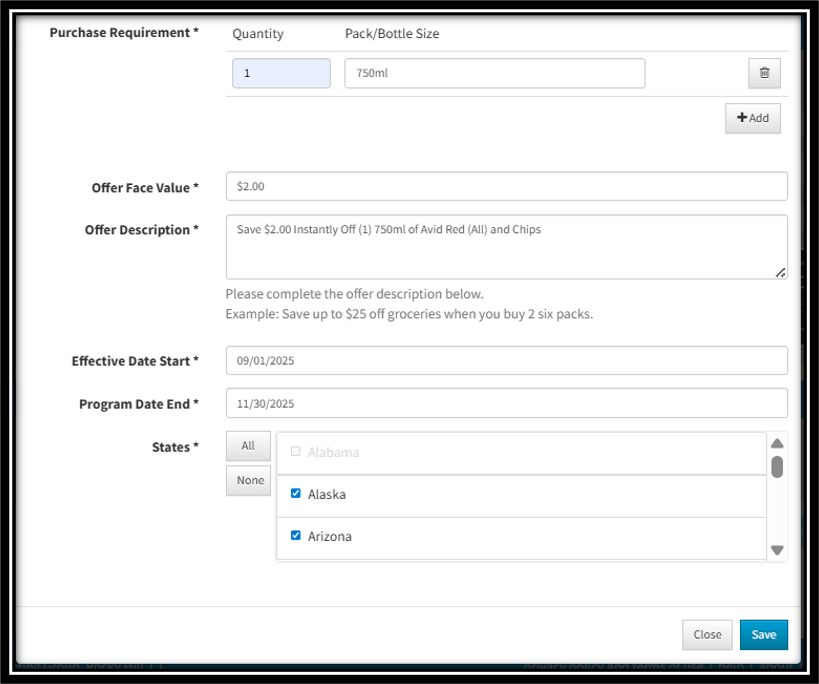
You'll be asked to fill out details about the campaign, including start and end date, and the offer value. You'll also need to select the states where offer is valid; greyed out states can not be selected and means the offer type is not legal for those states.
When all fields are complete, click "Save" to move to the next section.
You can add additional items/ offers by clicking "+Add Item" and follow the same steps as above.
If you are done adding items/offers, click "Next".
If at any time you need to pause while placing the order, the "Save Pending" button allows you to save your order at any step of the ordering process prior to submitting.
Placing your order
When all items have been added and configured, you can review your details and click "Submit Order." If your order includes in-store/print items, you'll be asked to select the shipping address(es) you wish to have the items shipped to. (See this article for details on how to add or manage shipping addresses.)
For non-digital orders, you'll also see an optional field for "Mark Box," a packaging label description that will appear on the outside of the package.
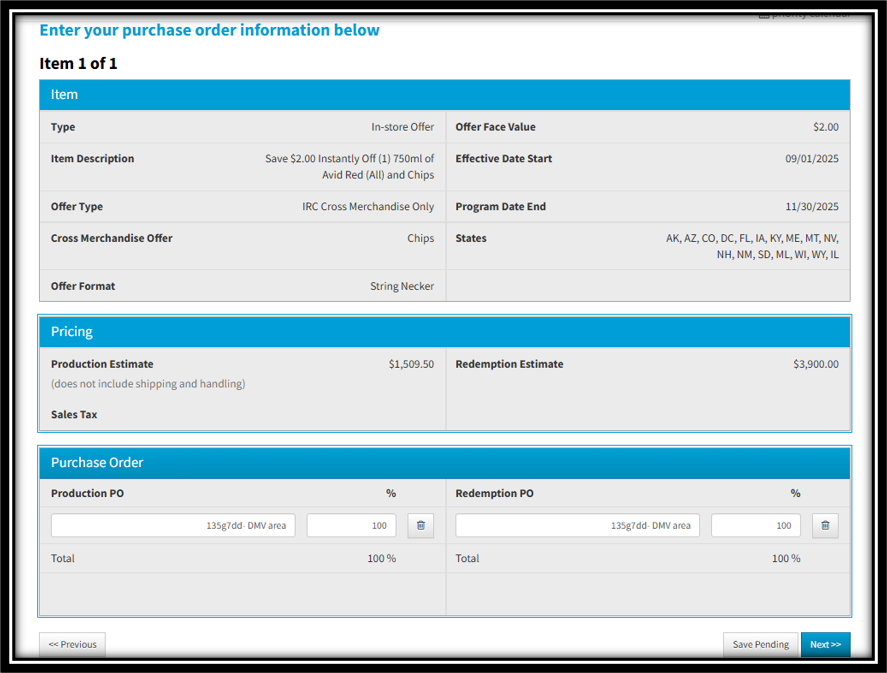
To apply to a PO, enter the Set to Quantity and click "Per Store"; the system will auto-calculate the total quantity of all shipments. When you click "Next", the purchase order section will have details and pricing estimates of the order. Enter the Purchase PO and Redemption PO if applicable, and click "Next“ to review your order details.
You'll see a pop-up asking you to verify that you're ready to place the order; click "Yes" to complete the order, or "No" to go back and review your details before submitting.
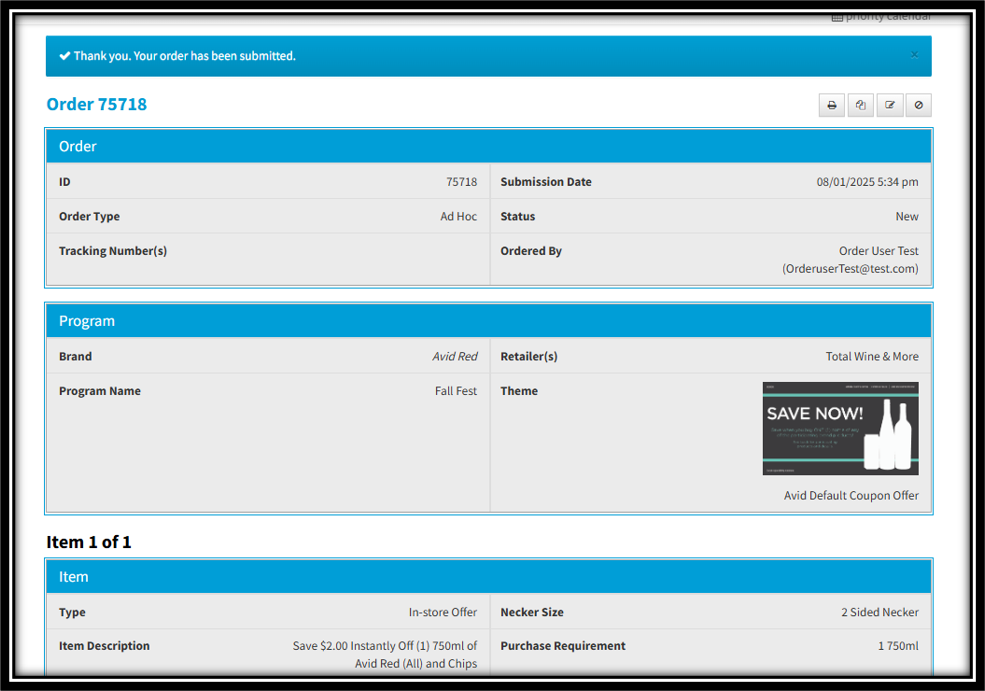
Once your order is placed, you'll see a confirmation at the top of your page confirming that the order has been successfully placed. You'll also receive an email to the address associated with your Utopia+ account shortly after we receive the order.
Special accommodations or requests
If your digital or print offer is needed earlier than the allotted 4-6 weeks timeframe, select the Rush button. When triggered, the AMG team will reach out to discuss timing of the offer and an additional fee per item will be added to the production estimate costs.
Comments/Notes/Special Requests: Enter any comments, notes, or special requests to the AMG team that have not already been mentioned during the ordering process.
Was this article helpful?
That’s Great!
Thank you for your feedback
Sorry! We couldn't be helpful
Thank you for your feedback
Feedback sent
We appreciate your effort and will try to fix the article